

The Clubhouse is a new audio social media platform, people from other social media are coming to Clubhouse. New Clubhouse users can link their other social media profiles like Instagram & Twitter, which will be visible on the user’s profile. In this, you will get to know all about linking Instagram & Twitter with Clubhouse.
How to Link Instagram To Clubhouse
Users can link his/her Instagram account to the Clubhouse profiles from the Clubhouse app itself, here’s how to do so.
Open the Clubhouse app on your phone.
Tap on the profile icon on the bottom right.

Now you will get two options there as ‘Add Twitter’ & ‘Add Instagram’.
Click on the ‘Add Instagram’ option to link your Instagram profile with your Clubhouse profile.
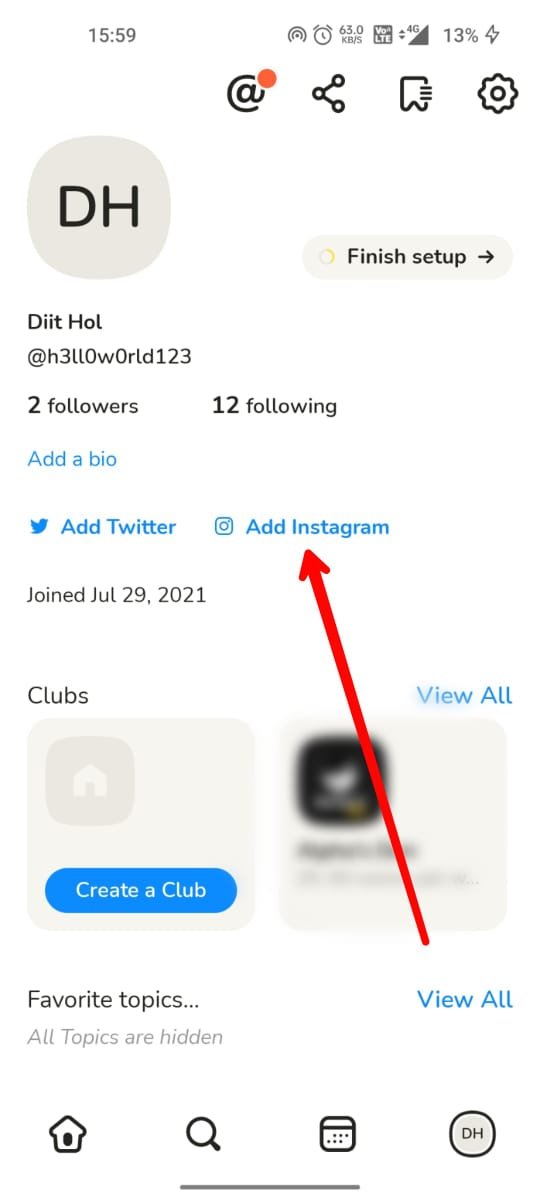
Now a new web page will appear asking you to allow or don’t allow to link your Instagram account. It will also show which Instagram profile you want to add to Clubhouse.
Choose one Instagram profile and click allow.

That’s it, your Instagram profile is now linked successfully to your Clubhouse profile and it will now be visible on your Clubhouse profile to other users as well.
To Link Twitter
To link your Twitter profile to Clubhouse follow these steps.
Tap on the ‘Add Twitter’ option from your profile page.

A new web page will appear asking you to log in with your Twitter account.
Now enter your Twitter username and password and tap on the ‘authorize app’ button.

Your Twiiter profile will get linked to your Clubhouse profile within a second.
How to Unlink Instagram/Twitter From Clubhouse
To unlink your Instagram or Twitter profile from your Clubhouse profile follow the below steps.
Tap on your profile icon on the bottom-right.
Now tap on settings on the top-right.

Now tap on your account.

Now you can unlink your Instagram or Twiter by tapping on the ‘Disconnect Twitter’ or Disconnnect Instagram’ options.

Tap on one option to unlink it from your Clubhouse account, it will get unlinked and removed from your profile page within a second.
Read More – Clubhouse Notification Settings
[…] Read More – How to Link Instagram & Twitter With Clubhouse […]